Tips for using our volunteer recruitment tool
How to post the perfect volunteer opportunity and attract new volunteers using our volunteer recruitment tool
Our volunteer recruitment tool connects interested people in your area to the roles that are needed.
It's designed to give volunteer recruiters the power to promote, share and attract new volunteers to specific and relevant opportunities. Here are some tips on how to edit templates in the tool to make your volunteer opportunity the best it can be.
What is the volunteer recruitment tool?
The volunteer recruitment tool is our own digital tool for publishing volunteer opportunities and recruiting new volunteers in Girlguiding. It puts the power of recruitment in the hands of our volunteers (see table of volunteer roles with access to publish on the tool) so we can match volunteers up with the right people for your specific needs. If you have recruiter permissions in GO, you’ll be able to access the tool via the ‘Volunteer recruitment tool’ tab in GO.
Find out more about the volunteer recruitment tool.
Before you get publishing, we’d encourage you to have a chat with your teams to identify where the recruitment needs are in your area and what you’d like to focus on.
How do I know which template to use?
For now, the following pre-populated templates are available to use on the tool:
- Leader (Rainbow, Brownie, Guide and Ranger).
- Unit helper (Rainbow, Brownie, Guide and Ranger).
- Unit admin (Rainbow, Brownie, Guide and Ranger).
- Young leader (ages 14-17).
- Young volunteer (ages 13-17).
- Student volunteer in [your area].
- District or division helper.
- District or division admin.
- Volunteer with Girlguiding in [your area] (generic volunteering template).
If you have a volunteer opportunity that doesn’t quite fit any of the role templates available, you may want to use the generic volunteering template. Or you could adapt the template that feels closest to your role, but change a few details to suit your needs.
The pre-populated templates available on the tool are designed to be adapted, so you can share what makes your opportunities unique. You’ll find guidance on how to do this below. They represent the great things about Girlguiding, so please do follow our tone of voice guidance, values and policies. There won’t be moderation on the opportunities before they're published, but we all have a responsibility to ensure they align with how we want to represent Girlguiding.
For more on our tone of voice and why it’s important, check our brand guidelines. If you notice any problems with an opportunity that’s been published on the tool, please let us know by emailing [email protected].
Editing the opportunity title
Each template has its own pre-populated title; but you can edit the title of your opportunity, which is what a potential volunteer will see when they’re searching. We’d encourage you to edit the title with the role name and your area. For example, the Brownie unit helper template might be edited to be a ‘Brownies helper in St Albans’ opportunity, or the division admin template might be edited to be a ‘Girlguiding admin in Bedford’ opportunity.
Don’t feel you have to stick with the role title from the template – if your unit uses different names for role titles, for example volunteer team member or youth group leader, then go for it. And don’t worry; your opportunity title won’t be the same as the role you confirm in GO for the potential volunteer later down the line, so you don’t need to worry about matching up exactly with our role titles.
We know some of our Girlguiding area names don't quite match up with geographical areas people might recognise. So feel free to use the area name that’s most understandable to you and others locally. For example, instead of ‘Helper in London over the border county’, you might use the title, ‘Helper in Walthamstow’ for your opportunity.
Editing the opportunity description
We’ve designed the templates to be a good introduction to guiding and cover all the general aspects that role might include. But we’d encourage you to edit the opportunity description to shout about what’s special about your unit or local area.
If you’re listing a unit level opportunity, does your unit love crafts, are you adventure addicts, do you have an annual camping trip or end every meeting with splat or the shoe game? The text under the ‘What’s a [Rainbow] unit’ heading in the opportunity description is a great place to add a bit about what your unit likes to get up to and what makes you unique.
Similarly, if you’re looking for someone to help with a specific task, like managing finances or helping with DIY or gardening at your local guiding building, make this stand out by editing the text under the 'What you'll be doing' heading in the opportunity description. And if there’s anything in there that you know the volunteer you’re looking for won’t be doing, feel free to take it out.
You could also add:
- If you’re listing a unit level opportunity, the specific times and how regularly your unit meets (for example, 5pm – 6pm every Tuesday during term time).
- If you’re advertising for a helper for a specific district event, you could add the event date and timings.
- Anything useful to bear in mind for access - for example, wheelchair access, or if there’s parking. If it’s hard to spot you might mention something noticeable nearby, or use what3words.
- It may be helpful to mention what to wear, like comfy clothes or shoes you don’t mind getting muddy.
- If the public transport links to your meeting place aren't great, you might include whether other leaders can give lifts or liftshare. This could really help encourage interest from anyone who isn't sure how they'd get there.
Top tip: put yourself in the shoes of the potential volunteer. What are the most important things to know about your opportunity? What would make you want to register for this opportunity?
Sharing your opportunity
Once you’ve previewed your opportunity and you’re happy with how it looks, you can hit publish. This will instantly publish your opportunity on our volunteer recruitment tool. When enquirers search on the tool, they’ll see your opportunity if it matches their search parameters. Your opportunity will only be shared on our tool by default; it will not automatically appear on any other websites or forums.
You can then promote it to your local community and encourage prospective volunteers to apply. Please feel free to share your opportunity wherever feels appropriate – from Facebook groups and community chats to other volunteering boards.
Each opportunity you publish has its own unique URL. To get the link for your opportunity, you’ll need to search for your postcode as if you were a potential volunteer and find your opportunity in the search results. You can then either select ‘View details’ to open the opportunity up and copy the URL from the navigation bar, or click the 3 dots icon on the right-hand side and select 'Copy link'.
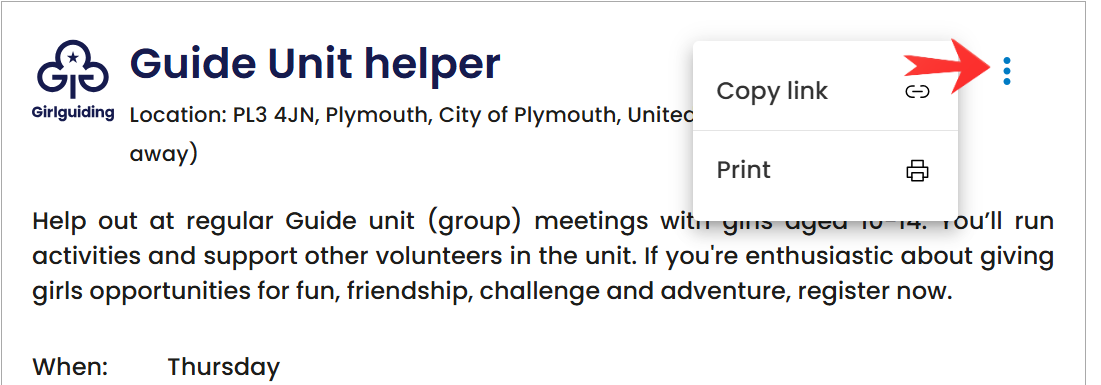
You may want to share the link for your opportunity on social media, in local community groups, or directly to people you know who might be interested.
You could also print the opportunity page using the print icon on each opportunity. If you’ve got several opportunities and you’re running a recruitment stand you could print these out and create a ‘volunteer opportunities’ board for members of the local community to browse and chat to you about.
You can create a QR code to add to recruitment materials using the link with a free online QR code generator. Charities are also eligible to apply for Canva for Nonprofits, which should give you access to Canva Pro features including their QR code generator.
If you’re not sure how to do this, speak to your local PRA advisor who might be able to help.
Sharing multiple opportunities
You can also copy and share a link to multiple opportunities in the volunteer recruitment tool. Just search by your postcode to generate a list of the opportunities which meet your search criteria, then click 'Copy link to results' at the top of the search results page. See screenshot below.

You might want to do this if you've published multiple opportunities in your area and want a quick, easy way to share a link to view all of them without sharing the links to each individual opportunity. You can then use this link to create a QR code or share in local community groups.
Questions you may have
If you’re publishing a role that isn’t based in a unit or a specific location, you can use any central postcode in your town or area. This is just so we can make sure the opportunity shows up in relevant searches in your area. If you’re not sure, try using the postcode of your town hall or a central building like a shop or library. Or if your area has a guiding owned building, you could use this.
No, currently you cannot completely delete an opportunity on the volunteer recruitment tool. But you can unpublish an opportunity and filter by ‘Published’ in the status column on the ‘Manage opportunities’ page to see only your live opportunities.
We do not have any policy that restricts us from displaying unit meeting locations. Our safeguarding policies and procedures are designed to keep girls and volunteers safe. But we also recognise that the unit meeting location is an important deciding factor for a potential volunteer, so we need to be as transparent about this as possible.
The volunteer recruitment tool’s search function is built around postcodes, so we can't accept a village or a town name when you're creating your opportunity. If you’d prefer, you can use a central postcode for your village or town instead and note within your opportunity description that they'll receive full address details upon onboarding, or when you feel most suitable.


